Deploy with the Unraid template
Unraid OS is a popular platform for home media and application servers. Steam Headless integrates smoothly with Unraid's Docker manager.
This guide walks you through configuring the Steam Headless container using the Unraid web interface.
Prerequisites
Before deploying Steam Headless on Unraid, ensure your server meets the following requirements:
- Unraid OS 7.0 or newer (or Unraid 6.12+ with Docker 28+).
- Community Applications plugin installed.
- Hardware graphics driver:
- Intel / AMD: In-kernel drivers work out of the box. Ensure the DRM render node (
/dev/dri/renderD128) is present. - NVIDIA: Complete the NVIDIA steps in Unraid host preparation, including driver installation,
nvidia_drm.modeset=1, and boot-time NVIDIA character-device initialisation.
- Intel / AMD: In-kernel drivers work out of the box. Ensure the DRM render node (
- Network configuration:
- For single-container setups, Host networking works immediately without extra network changes.
- For multi-container setups, follow the Unraid network preparation before selecting your custom physical interface network (e.g. Custom : eth0) and assigning dedicated LAN IP addresses.
Unraid container template configuration
In Unraid, open the Docker tab and click Add Container (or select Steam Headless from Community Applications). Fill in the form fields as outlined below:
1. Basic container settings
| Unraid Field | Default Single-Container Value | Explanation |
|---|---|---|
| Name | steam-headless | The container name in the Unraid Docker dashboard. |
| Repository | josh5/steam-headless:2 | Default Steam Headless image repository in the Unraid Community Applications template. |
| Network Type | Host (single container) or Custom : <interface> (multi-container) | Host networking is the simplest default for a single container. For multiple containers, use macvlan on your physical interface (e.g. Custom : eth0). |
| Console shell command | bash | Default shell for terminal access. |
| Privileged | OFF | Do not enable privileged mode. Steam Headless runs securely using specific capability grants. |
2. Extra Parameters (Crucial)
The Steam Headless Community Applications template includes the required container capabilities, systemd security options, and tmpfs mounts pre-populated in the Extra Parameters field.
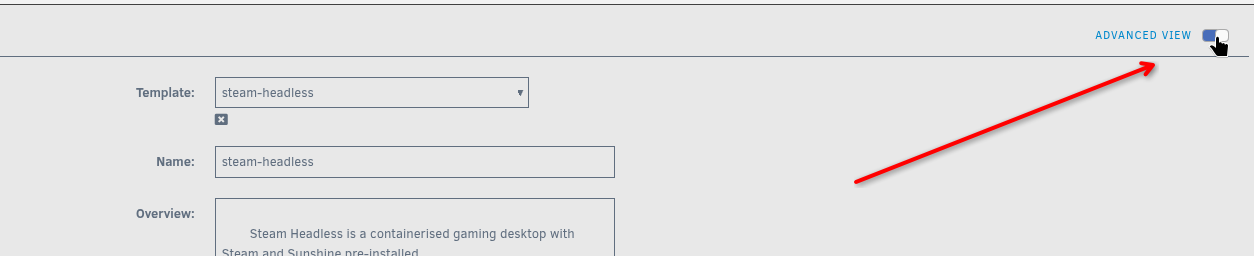
Toggle Advanced View in the top right corner of the Unraid template screen and verify that the Extra Parameters field contains the baseline parameters below (or restore them if they were modified):
--hostname=steam-headless --security-opt writable-cgroups=true --security-opt seccomp=unconfined --security-opt systempaths=unconfined --cgroupns private --cap-add SYS_ADMIN --cap-add SYS_PTRACE --cap-add NET_ADMIN --cap-add DAC_READ_SEARCH --cap-add SYS_NICE --device-cgroup-rule 'c 13:* rwm' --stop-signal SIGRTMIN+3 --stop-timeout 30 --pids-limit 8192 --shm-size 2g -t --tmpfs /run --tmpfs /run/lock --tmpfs /tmp --tmpfs /dev/input:rw,dev,mode=0755
The --hostname flag in Extra Parameters sets the network hostname for the container. Steam Remote Play, Steam Link, Sunshine / Moonlight, and local network discovery use this hostname as the machine name advertised to remote clients on your local network. You can change --hostname=steam-headless to whatever name you want remote streaming clients to see (for example, --hostname=living-room-pc). If you run multiple Steam Headless containers on Unraid, each container must have a unique --hostname value.
If you are using an NVIDIA graphics card, you must append --runtime=nvidia to the end of the Extra Parameters line.
While the baseline flags above are included in the template by default, --runtime=nvidia cannot be enabled automatically because not every Unraid system has an NVIDIA GPU installed. Without this flag, the container will be completely unable to communicate with the NVIDIA driver, hardware encoding will fail, and the desktop session will refuse to start.
The Advanced View uses the standard NVIDIA container options. On a host with multiple NVIDIA GPUs, select the specific device that should be available to this container.
The Unraid Nvidia Driver plugin can provide 64-bit driver libraries without the complete 32-bit set Steam and Proton require. On the first start for an NVIDIA driver version, Steam Headless may download the matching official NVIDIA installer and extract only the required 32-bit compatibility libraries into its persistent state. Allow several minutes and outbound HTTPS access for this one-time operation; later starts reuse the cached libraries.
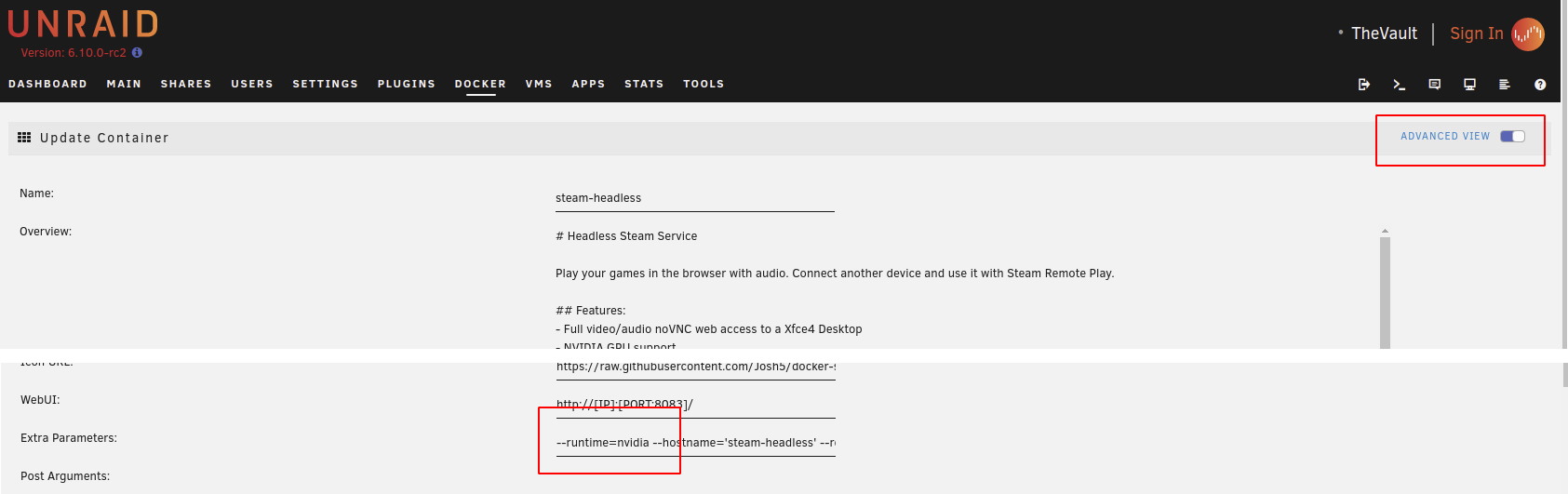
Why these Extra Parameters are essential:
--hostname=steam-headless: Sets the container's network identity. Sunshine, Steam Remote Play, and Steam Link use this hostname as the machine name advertised to Moonlight and Steam clients on your local network.--security-opt writable-cgroups=true --cgroupns private: Grantssystemda private, writable cgroup v2 hierarchy to manage services safely without compromising host security.--security-opt seccomp=unconfined --security-opt systempaths=unconfined: Allows Steam'spressure-vesselruntime and Flatpak'sbubblewrapto initialise unprivileged sandboxes.--cap-add SYS_ADMIN,SYS_PTRACE,NET_ADMIN,DAC_READ_SEARCH,SYS_NICE: Gives systemd internal mount capabilities, enables RealtimeKit audio scheduling, and permitsshinputdto discover virtual controller event devices.--device-cgroup-rule 'c 13:* rwm': Allows access to dynamic input event devices (major 13) created when controllers connect.--pids-limit 8192: Overrides lower host defaults that are designed for small service containers. A gaming desktop needs room for the processes and threads created by Plasma, launchers, browsers, Steam, Proton, and games.--shm-size 2g: Prevents Wayland compositor and web browser crashes caused by Docker's default 64 MB shared memory limit.--tmpfs /dev/input:rw,dev,mode=0755: Creates an isolated, in-memory input tree preventing input leakage between multiple sessions.
3. Path mappings (Storage)
The template pre-populates the following storage path mappings. In the default template view, the primary persistent application data paths and game library path are visible. Toggling Advanced View exposes system paths such as Local Time and Input Discovery:
| Config Type | Name | Container Path | Host Path | Access Mode | Template View |
|---|---|---|---|---|---|
| Path | User Profile | /home/steamheadless | /mnt/cache/appdata/steam-headless/home | Read/Write | Default |
| Path | Steam Headless State | /var/lib/steam-headless | /mnt/cache/appdata/steam-headless/state | Read/Write | Default |
| Path | System Journal | /var/log/journal | /mnt/cache/appdata/steam-headless/journal | Read/Write | Default |
| Path | Game Library | /mnt/games | /mnt/disk1/Games (or /mnt/disks/GameDisk) | Read/Write | Default |
| Path | Local Time | /run/host-localtime | /etc/localtime | Read Only | Advanced |
| Path | Input Discovery | /sys/devices/virtual/input | /sys/devices/virtual/input | Read Only | Advanced |
/mnt/user/...)Do not use an Unraid merged user-share path beginning with /mnt/user/ for Steam Headless State, System Journal, User Profile, or Game Library. In particular, do not point /mnt/games to a merged user share such as /mnt/user/Games.
The template defaults for state, journal, and profile use /mnt/cache/appdata/steam-headless/..., which accesses the cache pool directly. If your cache pool has another name, use its direct path, such as /mnt/fast-pool/appdata/steam-headless/.... Keep these locations on a pool that mover will not relocate to the array.
The user-share filesystem runs through Unraid's FUSE layer. It can prevent the ownership, access-control list (ACL), file-locking, and file-replacement behaviour that Steam Headless services expect from a native Linux filesystem. Modern PC games and Steam's Proton compatibility layer also perform extensive direct memory-mapped file I/O (mmap) and continuous random reads and writes. Running games from a user share array causes significant disk latency, extreme micro-stuttering, and frequent Proton disk write errors.
Instead, point the container directly to an unmerged disk:
- Direct Array Disk: E.g.
/mnt/disk1/Gamesor/mnt/disk2/Games. Direct disk access bypasses the FUSE layer entirely. - External USB / SATA Drive: Use the Unassigned Devices plugin to mount an external SSD or fast drive directly to
/mnt/disks/GameDisk.
4. Device mappings (Hardware)
The template pre-populates the required hardware device nodes. GPU Render Node is displayed in the default view; toggling Advanced View exposes the FUSE and virtual input devices:
| Config Type | Name | Host Value | Container Value | Template View |
|---|---|---|---|---|
| Device | GPU Render Node | /dev/dri/renderD128 | /dev/dri/renderD128 | Default |
| Device | FUSE Filesystem | /dev/fuse | /dev/fuse | Advanced |
| Device | Virtual Input | /dev/uinput | /dev/uinput | Advanced |
| Device | Virtual HID | /dev/uhid | /dev/uhid | Advanced |
On NVIDIA systems, map the correct /dev/dri/renderD* node and configure the NVIDIA Container Toolkit. Do not add a /dev/dri/card* primary node.
5. Environment variables (Configuration)
The template pre-populates primary permission, session mode, Steam autostart, and GPU device variables. In the default template view, the permission variables PUID and PGID are visible. Toggling Advanced View reveals session mode, Steam autostart behaviour, and optional device overrides. Advanced configuration variables (such as initial display dimensions, custom virtual seats, or custom streaming bitrates) can be added manually to the template by consulting the Container options reference.
| Config Type | Name | Variable Name | Default Value | Description | Template View |
|---|---|---|---|---|---|
| Variable | PUID | PUID | 99 | Numeric host user ID for file permissions (Unraid nobody). | Default |
| Variable | PGID | PGID | 100 | Numeric host group ID for file permissions (Unraid users). | Default |
| Variable | Session Mode | STEAM_HEADLESS_SESSION_MODE | desktop | Initial frontend mode: desktop (KDE Plasma) or gaming (Gamescope/Gamepad UI). | Advanced |
| Variable | Desktop Steam Autostart | ENABLE_STEAM_SYSTEMD_SERVICE | true | When set to true (default), the background systemd service starts Steam automatically with the desktop and restarts it after it closes. Set to false to disable the autostart service while leaving Steam installed for manual launch. | Advanced |
| Variable | Compositor Render Device | COMPOSITOR_RENDER_DEVICE | (blank) | DRM render device for KWin. Leave empty to automatically detect first render node. | Advanced |
| Variable | Encoder Render Device | ENCODER_RENDER_DEVICE | (blank) | DRM render device for video encoders. Leave empty to match compositor device. | Advanced |
| Variable | NVIDIA Visible Devices | NVIDIA_VISIBLE_DEVICES | all | Target specific NVIDIA GPU ID or UUID on multi-GPU hosts (defaults to all). | Advanced |
| Variable | NVIDIA Driver Capabilities | NVIDIA_DRIVER_CAPABILITIES | all | Driver capabilities: enables graphics, compute, and NVENC video libraries. | Advanced |
For complete details on supported environment options and behaviour, see the Container options reference.
6. Running Multiple Containers on Unraid
The official Unraid template is configured out of the box for a single AMD or Intel container running in Host network mode. If you want to deploy multiple concurrent gaming containers on the same Unraid server:
- Prepare macvlan: Follow the Unraid network preparation, which requires stopping the array, setting Enable bridging to No, selecting macvlan as the Docker custom network type, and enabling host access to custom networks.
- First Container:
- In the top right corner, toggle Advanced View to expose network and Extra Parameters settings:
- Change Network Type from
Hostto your custom physical interface network (such asCustom : eth0) and assign a dedicated static IP address (such as192.168.1.51). - In Extra Parameters, set a unique
--hostnamefor the container (such as--hostname=steam-headless-a).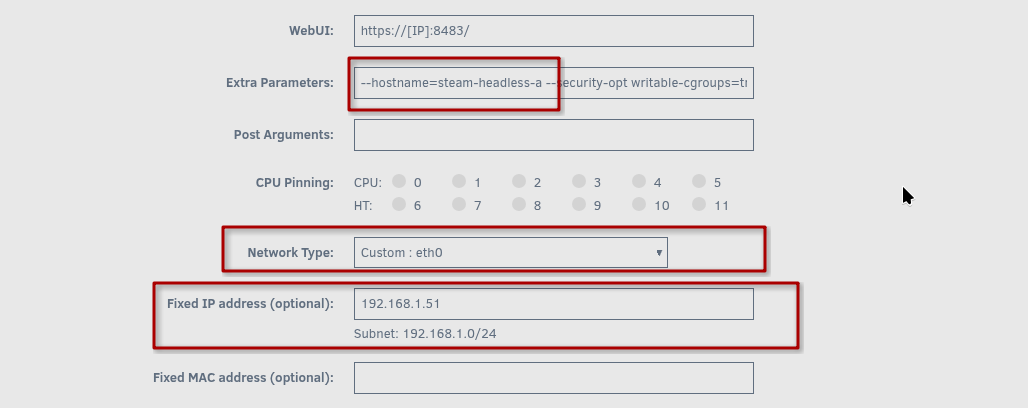
- Use default appdata paths (e.g.
/mnt/cache/appdata/steam-headless/...).
- In the top right corner, toggle Advanced View to expose network and Extra Parameters settings:
- Second Container:
- Add another container using the template, but change the Name to
steam-headless-2(orsteam-headless-b). - Set Network Type to the same custom physical interface network (e.g.
Custom : eth0) and assign a distinct static IP address (such as192.168.1.52). - Change the appdata host paths to a separate directory (e.g.
/mnt/cache/appdata/steam-headless-b/...for User Profile, Steam Headless State, and System Journal). - In Extra Parameters, ensure you set a distinct
--hostname(for example,--hostname=steam-headless-b) so that Steam Link and Moonlight advertise separate machine names on your local network. - If targeting a second GPU, update the
/dev/dri/device paths (e.g./dev/dri/renderD129).
- Add another container using the template, but change the Name to
eth0 vs br0)When configuring Unraid for macvlan networking, Enable bridging is set to No in Unraid's Network Settings to prevent macvlan call traces and host kernel crashes. Because bridging is disabled, the Docker custom network attaches directly to your physical host Ethernet interface rather than a virtual bridge such as br0.
In the template's Network Type dropdown, select your physical interface network (such as Custom : eth0). While eth0 is common on many servers, your specific interface name may differ depending on your motherboard and network configuration (such as eth1, eno1, or a bonded interface). Check Settings → Network Settings in Unraid to confirm the name of your primary active interface.
Verifying deployment and initial launch
-
Click Apply at the bottom of the Unraid template page. Unraid will pull the container image and launch the container.
-
In the Unraid Docker tab, click the Steam Headless container icon and select Logs.
-
Confirm that:
systemdreaches the multi-user target.- Compositor initialises with hardware graphics acceleration.
- Hardware video encoders are probed successfully.
-
Open your web browser and browse to:
https://<CONTAINER_IP>:8483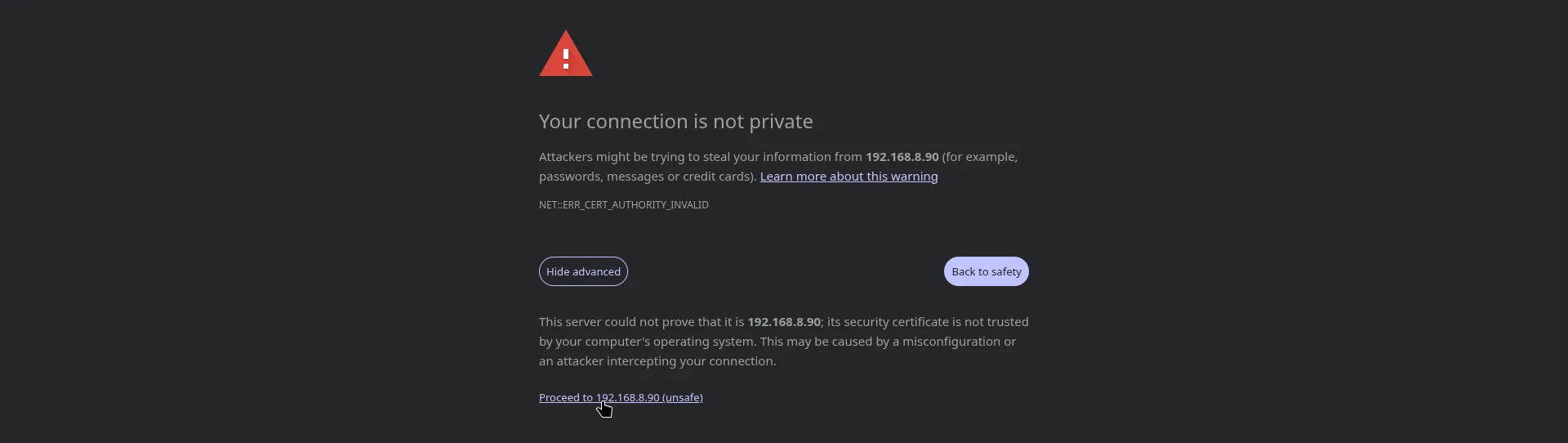
(Accept the self-signed TLS certificate warning in your browser).
-
You will see the Steam Headless enrolment screen. Follow the First run guide to set your administrative password and start playing.
Where to go next
- Configure Steam Headless: Explore environment variables and streaming options.
- Configure a macvlan network: Detailed guidance on Unraid custom networking and router reservations.
- First run: Log in to the web interface, pair game controllers, and launch Steam.