Desktop Portal
The Desktop Portal lets you stream and interact with the remote desktop directly inside any modern web browser (including Google Chrome, Mozilla Firefox, Apple Safari, and Microsoft Edge) without installing client applications or browser extensions.
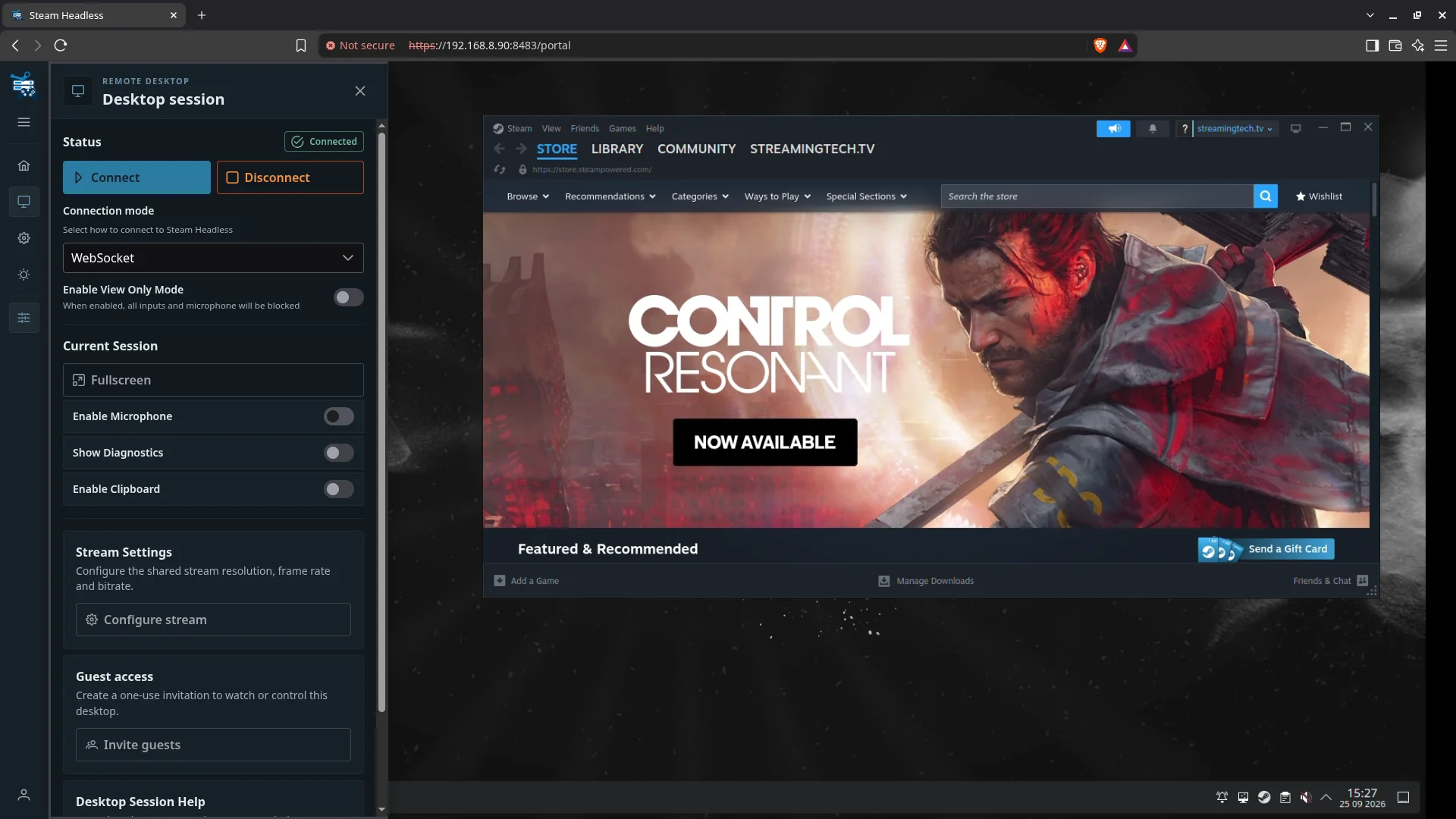
Streaming Architecture and Transports
The Desktop Portal uses a native streaming engine tailored specifically for Wayland and KWin:
Transport Modes
You can configure your connection preference in the Session Controls drawer:
- WebSocket (Default): Delivers Annex B H.264 video frames over same-origin WebSockets on TCP 8483 using HTML5 WebCodecs and canvas rendering. Because local networks have negligible packet loss, TCP and UDP performance is practically identical (~1 ms). Crucially, WebSocket video is rendered directly to canvas with zero buffer delay, avoiding the browser's hard-coded ~40 ms WebRTC jitter buffer. This makes WebSockets the superior choice for local LAN gaming.
- WebRTC: Delivers real-time media tracks directly over UDP 8483 into an HTML5
<video>element using Interactive Connectivity Establishment (ICE), SRTP encryption, and unordered transient DataChannels for pointer motion. Because modern browsers enforce an unconfigurable ~40 ms internal jitter buffer on WebRTC video, choosing WebRTC taxes your gameplay with 40 ms of added input delay. WebRTC is therefore recommended only when streaming across lossy Wi-Fi or remote internet connections where TCP packet loss causes severe WebSocket freezes.
The active transport is always visible in the top status bar and the diagnostics overlay (e.g. WebSocket TCP 8483 or WebRTC UDP 8483). For a comprehensive technical comparison, see Choosing Between WebSocket and WebRTC.
Viewport, Resolution, and Display Scaling
The Desktop Portal dynamically adapts to your client browser window:
- Aspect Ratio Preservation: By default, the remote desktop maintains its native 16:9 aspect ratio, applying subtle letterboxing when your browser window does not match the remote resolution.
- Responsive Scaling: The stream scales smoothly to fit your browser viewport, ensuring text, launcher icons, and game graphics remain sharp.
- Entering Fullscreen: Press F11 or click the Fullscreen button in the Session Controls drawer to eliminate browser tabs and address bars, dedicating your entire monitor to the remote gaming desktop.
Pointer and Mouse Interaction
Using a remote desktop requires different mouse behaviour than playing a 3D first-person game:
1. Click to Lock Pointer
Click anywhere on the stream surface to lock your mouse pointer to the remote desktop. While locked:
- Your local mouse pointer disappears.
- Cursor movements are captured exclusively by the remote session.
- The browser engages the Pointer Lock API (
requestPointerLock({ unadjustedMovement: true })).
2. Relative Mouse Mode for 3D Games
In 3D games (such as first-person shooters, flight simulators, or third-person action titles), normal mouse movement causes the cursor to hit the edge of the browser window, halting camera rotation.
The relative mouse mode delivers unadjusted motion deltas directly to KWin Wayland:
- Unbounded 360° Camera Control: The camera rotates continuously without bumping against invisible window edges.
- Raw Input Precision: Disables operating system mouse acceleration curves for consistent muscle memory and crosshair aiming.
3. Releasing the Pointer
To release pointer lock and return your mouse cursor to your local desktop:
- Press Esc, or
- Press the release chord: Ctrl+Alt+Shift+Z.
Gamepad and Controller Support
The Desktop Portal features plug-and-play support for gaming controllers:
Supported Gamepads
Any controller recognised by your operating system and web browser is supported, including:
- Xbox Controllers: Xbox Wireless Controller (Bluetooth), Xbox 360 / One / Series X|S (USB wired or wireless adapter).
- PlayStation Controllers: DualShock 4, DualSense (PS5).
- Nintendo Switch: Switch Pro Controller.
- Generic / Retro Controllers: Any standard DirectInput / XInput USB gamepad or arcade stick.
How It Works
- Connect your controller via USB or Bluetooth before or during a session.
- Press any button on the gamepad so your browser activates the Gamepad API.
- The streaming server automatically creates an isolated virtual gamepad device in the container using
/dev/uinput. - Analog stick axes and button states are polled at 60 Hz and transmitted over an unordered, low-latency DataChannel.
- Steam, Proton, and native Linux games recognise the virtual controller immediately without configuring third-party mapping utilities.
Multi-Viewer and Spectator Mode
The Desktop Portal makes it easy to share your live gaming session with friends or family:
1. Single Hardware Pipeline Fan-Out
Unlike traditional remote desktop software that re-encodes the screen for every connected user, the streaming engine encodes the desktop once using your host GPU's hardware video engine (Intel VA-API, AMD VA-API, or NVIDIA NVENC).
The encoded H.264 video stream is then fanned out over network sockets to all connected viewers. This allows multiple friends to spectate your game simultaneously without multiplying GPU load or causing in-game framerate drops.
2. View-Only (Spectator) Mode
If a friend wants to watch your gameplay without accidentally bumping your mouse or typing characters into your terminal, they can enable View-Only Mode:
- Toggle View Mode in the Session Controls drawer.
- View mode immediately releases all held keys, blocks browser mouse clicks, and disables microphone return.
- The spectator receives pure video and audio with zero risk of interfering with the player's controls.
3. Local Multiplayer Across the Web
Because the portal supports independent gamepad slots for each connected browser, you can play local couch co-op games (such as Overcooked, Lego titles, or retro emulators) with friends over the internet. Each player opens the Desktop Portal in their own browser and connects their controller.
Focus Safety and Automatic Key Release
To prevent keys from becoming "stuck down" on the remote desktop:
- Window Blur / Tab Switch: If you switch tabs, minimise your browser, or click onto another application on your local machine, the browser client immediately dispatches an emergency release-all event to clear all held keyboard keys, mouse buttons, and gamepad triggers.
- Connection Heartbeat: The backend monitors client heartbeats. If a client browser crashes or loses internet connectivity, the server automatically releases all active inputs within 500 milliseconds.
Next Steps
To fine-tune video quality, adjust bitrates, enable clipboard synchronisation, or inspect real-time latency metrics, proceed to the Session Controls guide.