Guest access and invitations
Steam Headless UI makes it simple to invite friends or family to join your session without sharing your master administrative password. Whether you want someone to watch your gameplay stream or pass a virtual gamepad to a friend for couch co-op games on your local network, guest invitations provide fine-grained, secure access.
Guest links also work smoothly for remote friends who can reach your Steam Headless instance through a secure private network or VPN, letting you share gameplay and co-op titles without opening public ports or compromising container security.
Security and single-use tokens
Guest access is designed from the ground up with strong security boundaries:
- Single-use cryptographic tokens: Every generated invitation URL contains a cryptographically secure, single-use token. Once a guest redeems the link in their browser, the token is consumed and cannot be reused or forwarded to third parties.
- Restricted guest interface: Guests receive a streamlined streaming portal. They have no access to administrative configuration, hardware telemetry, system service journals, or container lifecycle actions.
- Configurable session lifespan: Active guest sessions automatically expire after a duration you define, or as soon as you manually revoke them.
- Zero credential sharing: You never have to share or temporarily change your administrative password to let someone join.
Creating an invitation
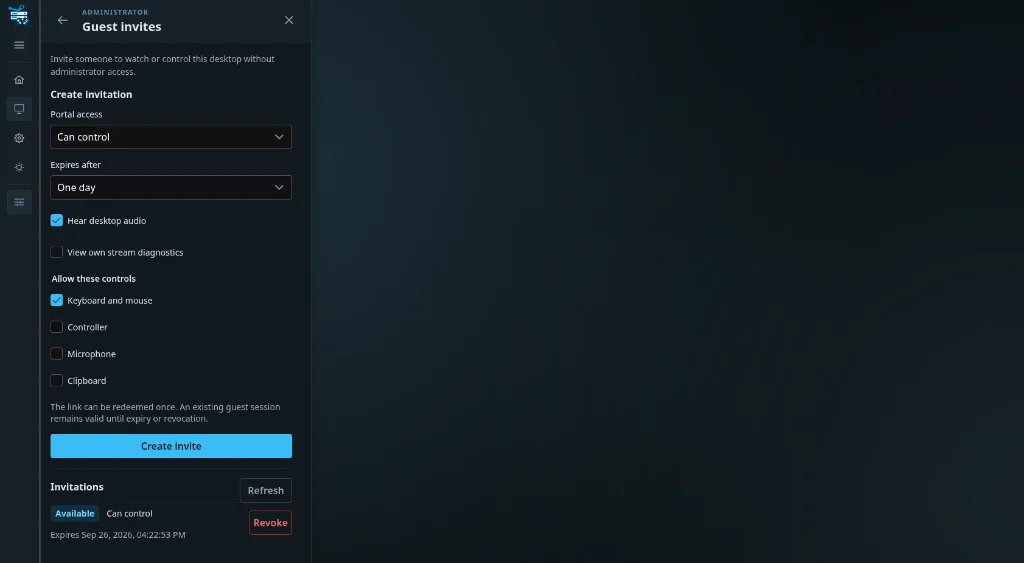
To create an invitation, open the Session Controls drawer (Ctrl+Alt+Shift+M) while streaming your desktop, click Guest Invites, and select Create Invitation.
You can tailor the invitation with the following configurable options:
Portal access mode
Choose how the guest interacts with your desktop session:
- Can watch (Spectator mode): The guest receives full high-definition video and audio, but all inputs are disabled. They cannot move your mouse, send keystrokes, or disrupt your gameplay. This mode is ideal for sharing a game walkthrough, showing a replay, or letting friends spectate.
- Can control (Interactive mode): Grants interactive input permissions. When selected, you can specify exactly which input devices the guest may use.
Expiry duration
Select how long the invitation and resulting session remain valid:
- 1 hour: Best for quick viewing parties or short gaming sessions.
- 1 day: Convenient for an afternoon or evening of gaming.
- 1 week: Ideal for ongoing co-op campaigns with trusted friends.
Once the expiration timer elapses, the guest session is terminated automatically.
Audio and diagnostics options
- Hear desktop audio: Controls whether game and desktop audio is streamed to the guest's browser. Disable this if you only want to share silent video.
- View own stream diagnostics: Allows the guest to toggle their own compact network and rendering HUD overlay to inspect their connection latency and frame delivery.
Granular input permissions
When Can control is enabled, you can selectively enable or disable individual input methods:
- Keyboard and mouse: Passes standard keyboard keystrokes and mouse cursor navigation to the remote desktop.
- Controller: Enables browser Gamepad API passthrough. When a guest connects a physical gamepad (such as an Xbox, PlayStation, or Switch controller) to their device, it maps directly to a virtual gamepad inside the container. This enables local couch co-op games, such as Overcooked! or Moving Out, to recognise the guest as player two, three, or four.
- Microphone: Routes the guest's microphone into the container's virtual PipeWire microphone node, enabling in-game voice chat or communication through container apps.
- Clipboard: Enables shared plain-text clipboard synchronisation, allowing text copied by the guest to be pasted into the remote desktop environment.
Once configured, click Generate Invite to create the link. Copy the generated URL and share it directly with your guest.
Managing and revoking invitations
The lower half of the Guest Invites panel displays a real-time list of all generated invitations:
- Active invitations: Shows guest sessions that are currently connected, including the active permission profile, connection timestamp, and remaining expiry duration.
- Pending invitations: Shows unused tokens awaiting redemption.
- Instant revocation: Click Revoke next to any invitation to immediately invalidate the token. If the guest is actively streaming, their connection is severed instantly and all associated virtual input devices are detached from the desktop.
Where to go next
- Desktop Portal: Explore the web streaming portal architecture and supported browser capabilities.
- Session Controls: Customise stream resolution, bitrates, audio routing, and input capture modes.