Session Controls
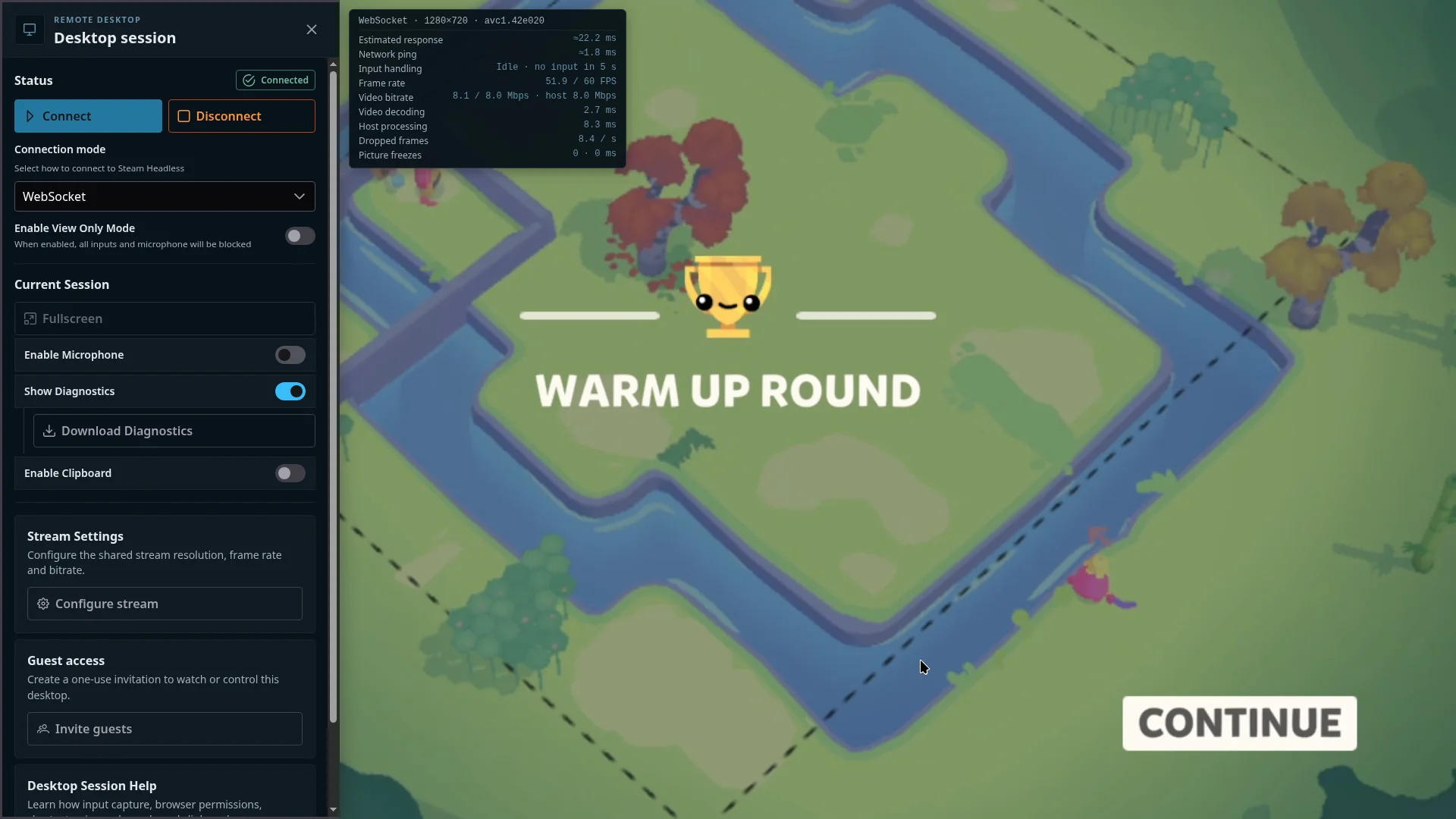
Opening and Using the Drawer
The session drawer slides out from the left edge of the screen:
- Mouse Trigger: Click the floating sliders icon on the left navigation rail.
- Keyboard Shortcut: Press Ctrl+Alt+Shift+M.
- Non-Modal Design: The drawer does not dim or disable the desktop. You can test inputs, click remote windows, and observe the stream while the drawer remains open.
Within the drawer, sub-panels for Help Guide, Configure Stream (administrator only), and Guest Invites (administrator only) slide in smoothly with breadcrumb back navigation, keeping your workspace uncluttered.
Connection Mode Selection
The drawer lets you choose between two connection transports for your browser:
- WebSocket (Default): Positioned as the top option in the dropdown and recommended for all local network play. Delivers video frames over TCP 8483 directly to an HTML5 canvas via browser WebCodecs with zero added buffer delay. Because local networks have minimal packet loss, TCP and UDP latency differences are negligible (~1 ms), making WebSockets vastly superior to WebRTC on LAN.
- WebRTC: Streams real-time media tracks directly over UDP 8483 into an HTML5
<video>element using SRTP encryption. WebRTC implementations in modern browsers enforce an unconfigurable internal jitter buffer of approximately 40 ms designed for video conferencing, adding a mandatory 40 ms latency tax to all gameplay. WebRTC is therefore only recommended when playing across lossy Wi-Fi or remote internet connections where TCP packet loss causes severe WebSocket freezes.
Selecting a new connection mode saves your preference to your browser's local storage and reconnects the stream immediately. For troubleshooting connection drops and transport selection, see Choosing Between WebSocket and WebRTC.
Complete Input Capture and System Hotkeys
When streaming a remote desktop in a standard web browser, pressing operating system shortcuts (such as Alt+Tab, the Windows/Super key, or Ctrl+W) normally triggers your local computer's window switcher or closes your browser tab.
Enabling Complete Input Capture
- Enter Fullscreen mode by clicking the Fullscreen button in the drawer or pressing F11.
- On supported Chromium-based browsers (Google Chrome, Microsoft Edge, Brave), the web client requests the browser's Keyboard Lock API (
navigator.keyboard.lock()). - Once engaged, all keystrokes, including the Windows/Super key and window management hotkeys, are passed straight through to the remote Linux desktop.
Essential Escape Chords
Because complete input capture routes all keys to the remote machine, the web interface reserves dedicated global escape chords that are always handled by the client browser:
| Shortcut | Action | Scope |
|---|---|---|
| Ctrl+Alt+Shift+Z | Release Remote Input | Releases pointer lock and keyboard capture back to your local PC. |
| Ctrl+Alt+Shift+Q | Release & Disconnect | Releases input and cleanly closes the current browser streaming connection. |
| Ctrl+Alt+Shift+X | Toggle Fullscreen | Enters or leaves browser fullscreen mode. |
| Ctrl+Alt+Shift+M | Toggle Drawer | Opens or closes the Session Controls drawer. |
| Ctrl+Alt+Shift+H | Toggle Help | Opens or closes the in-app Desktop Session Help guide. |
| Ctrl+Alt+Shift+D | Toggle Diagnostics | Shows or hides the real-time Stream Diagnostics HUD. |
Stream Quality and Bitrate Controls
Clicking Configure Stream under the Administrator section opens the shared media profile settings.
Stream capture resolution, frame rate, and target bitrate apply to the container's single shared hardware encoder pipeline. Changes affect all connected viewers simultaneously.
1. Live Bitrate Tuning
You can adjust the video target bitrate using the numeric stepper or preset values (e.g. 4,000 kbit/s, 8,000 kbit/s, 12,000 kbit/s).
When bitrate is the only modified field, the streaming engine applies the change live to the running GStreamer hardware encoder over its control pipe. The video stream adjusts its bandwidth within milliseconds without dropping frames or interrupting gameplay.
2. Resolution and Frame Rate Profiles
Changing the capture resolution (such as switching from 1280×720 to 1920×1080) or frame rate (30 FPS to 60 FPS) requires re-initialising the KWin virtual output and PipeWire screencast node:
- Apply on Next Stream Start: Saves your requested profile to persistent storage. The current stream continues uninterrupted until the container or session restarts.
- Restart Stream Now: Promptly releases all connected viewers, stops the current GStreamer pipeline, initialises the new pipeline, and prompts viewers to reconnect with a fresh keyframe.
Stream Diagnostics Overlay (HUD)
Press Ctrl+Alt+Shift+D or toggle Show Diagnostics in the drawer to display the real-time performance overlay:
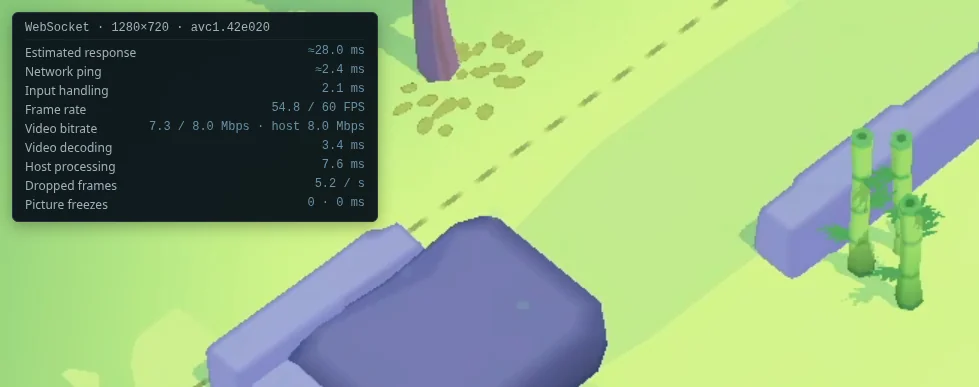
The diagnostics HUD provides transparent, latency-calibrated telemetry directly from the browser's WebRTC stack and the server's GStreamer pipeline:
| Metric | What It Measures | Ideal Reading |
|---|---|---|
| Stream Health | Overall assessment based on packet loss, RTT, and frame delivery. | Healthy (green) |
| Transport & Codec | Active protocol, resolution, and video decoder. | WebRTC · 1920×1080 · H264 |
| Estimated Response | End-to-end user input latency (network RTT + host pipeline + video decode). | < 40 ms on local LAN |
| Network Ping (RTT) | Network round-trip time between client browser and container. | < 5 ms on home Wi-Fi/Ethernet |
| Input Handling | Processing delay for input events inside the container. | < 2 ms |
| Frame Rate | Delivered / presented frames per second vs configured target. | 60.0 / 60 FPS |
| Video Bitrate | Received bandwidth vs configured target vs applied hardware rate. | Steady at configured rate (e.g. 8.0 / 8.0 Mbit/s) |
| Video Decoding | Client-side hardware decoding time in the web browser. | < 5 ms |
| Host Processing | Duration from frame ingress to RTP packet delivery on the server. | < 8 ms |
| Dropped Frames | Frames dropped by the browser due to CPU bottlenecks. | 0.0 / s |
| Picture Freezes | Count and total duration of video freeze events. | 0 freezes |
| Suggested Adjustment | Actionable guidance based on rolling five-second statistics. | Optimal network conditions |
Click Download Diagnostics in the Session Controls drawer to export a comprehensive JSON snapshot containing raw WebRTC statistics, codec profiles, and server pipeline state for technical support or forum troubleshooting.
Clipboard Synchronisation
The web interface provides opt-in, bidirectional plain-text clipboard synchronisation between your local device and the remote gaming desktop.
How to Use Clipboard Sync
- Open the Session Controls drawer (Ctrl+Alt+Shift+M).
- Toggle Enable Clipboard.
- The embedded textarea editor displays the current text contents of the remote desktop clipboard.
- Copying to Remote: Paste or type text into the drawer's clipboard editor. Within 500 ms, the server securely pushes the text into the remote KDE Plasma clipboard (
wl-clipboard). You can then paste it normally inside any remote application using Ctrl+V. - Copying from Remote: Copy any text on the remote desktop. The web interface automatically polls the remote clipboard and updates the drawer's editor, ready for you to copy locally.
Security Boundaries
- Strict Size Limit: Bounded to a maximum of 64 KiB of UTF-8 plain text. Large files, images, and binary buffers are rejected.
- Opt-In Only: Clipboard synchronisation is disabled by default to protect sensitive credentials and passwords in your local clipboard from being automatically exposed to the container.
Audio and Microphone Controls
- Mute / Unmute Audio: Click the audio toggle in the drawer to mute remote desktop sound without altering game audio settings inside the container.
- Microphone Return:
- Toggle Enable Microphone in the drawer to route your client microphone into the remote container.
- The browser requests standard microphone permissions and feeds your voice into a virtual PipeWire microphone node.
- Games, Steam Voice Chat, Discord, or TeamSpeak running inside the container can capture your microphone smoothly.
- To prevent audio chaos in multi-viewer sessions, the server enforces a single-owner lease: only one user can publish a microphone at a time.
Guest Invites
Administrators can generate secure, single-use invitation links directly from the Session Controls drawer by clicking Guest Invites. These links let friends and family watch your stream or join in local co-op gameplay on your home network without sharing administrative passwords.
Each invitation can be tailored with specific permissions, including spectator mode, controller passthrough, audio playback, and automatic expiration. To learn how to configure, share, and revoke guest invitations, see the dedicated Guest Access guide.
View-Only Mode and Disconnecting
- View-Only Mode: Toggle Enable View Mode to instantly turn your session into a passive spectator stream. It releases all held keys, detaches virtual controllers, and disables microphone transmission.
- Disconnecting: Click Disconnect in the drawer or press Ctrl+Alt+Shift+Q to cleanly release all input devices, tear down WebSockets or WebRTC peer connections, and return to the Desktop Portal welcome screen.
For troubleshooting connection drops, audio issues, or controller glitches, refer to the Streaming troubleshooting guide.