Switch between Desktop and Gaming Mode
Steam Headless v2.44.20260925.1 gives you two ways to use your container. Stay in the KDE desktop when you want to set things up or launch other applications, or switch to Steam's controller-friendly Gaming Mode when you're ready to play. You can move between the two without restarting the container.
Switch between modes
Steam's Switch to Desktop action opens KDE, and Return to Gaming Mode in the desktop application menu takes you back. Steam starts in the form suited to each mode, while the container and its streaming services keep running.
| In Gaming Mode | On the KDE desktop |
|---|---|
 |  |
More virtual display resolutions
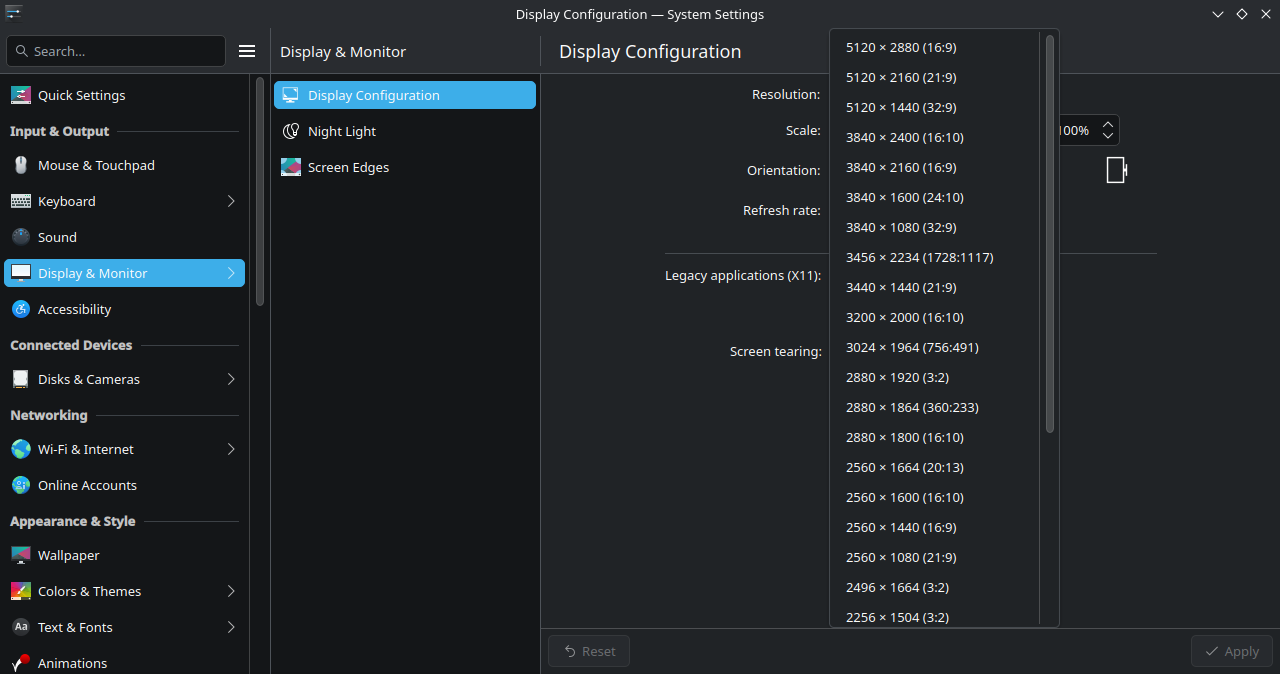
The virtual display also has more resolution choices, including sizes suited to laptops, handhelds and ultrawide screens. Common sizes are available at 60, 90 and 120 Hz, so you have a better chance of matching the screen you're streaming to.
See the options yourself: Open System Settings on the KDE desktop, choose Display & Monitor and then Display Configuration, and open the Resolution drop-down.
Choose how Sunshine changes the display
If you prefer to keep the desktop at one size, you can now turn off automatic display changes when a Moonlight stream starts. Set SUNSHINE_ENABLE_AUTO_DISPLAY_MODE to false in your container configuration; the Sunshine configuration guide shows the setting and an example.
Optional applications in the menu
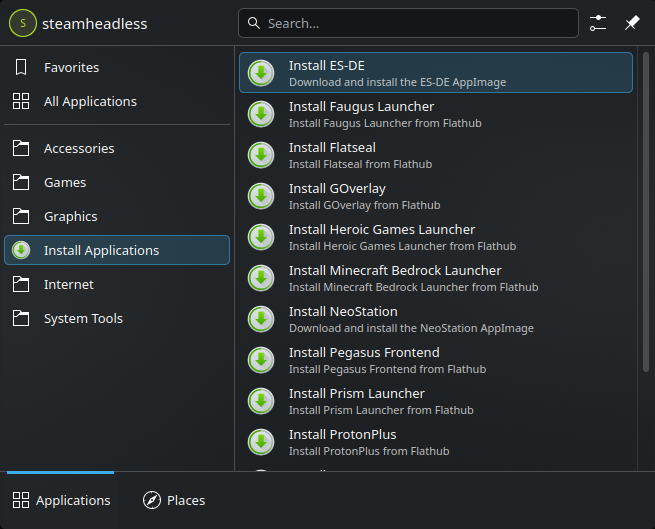
In the desktop application menu, the new Install Applications submenu offers optional gaming tools and launchers, including Heroic Games Launcher, Prism Launcher and RetroDECK. Pick the ones you want; their installation shortcuts are removed from the menu once they're installed or dismissed.